
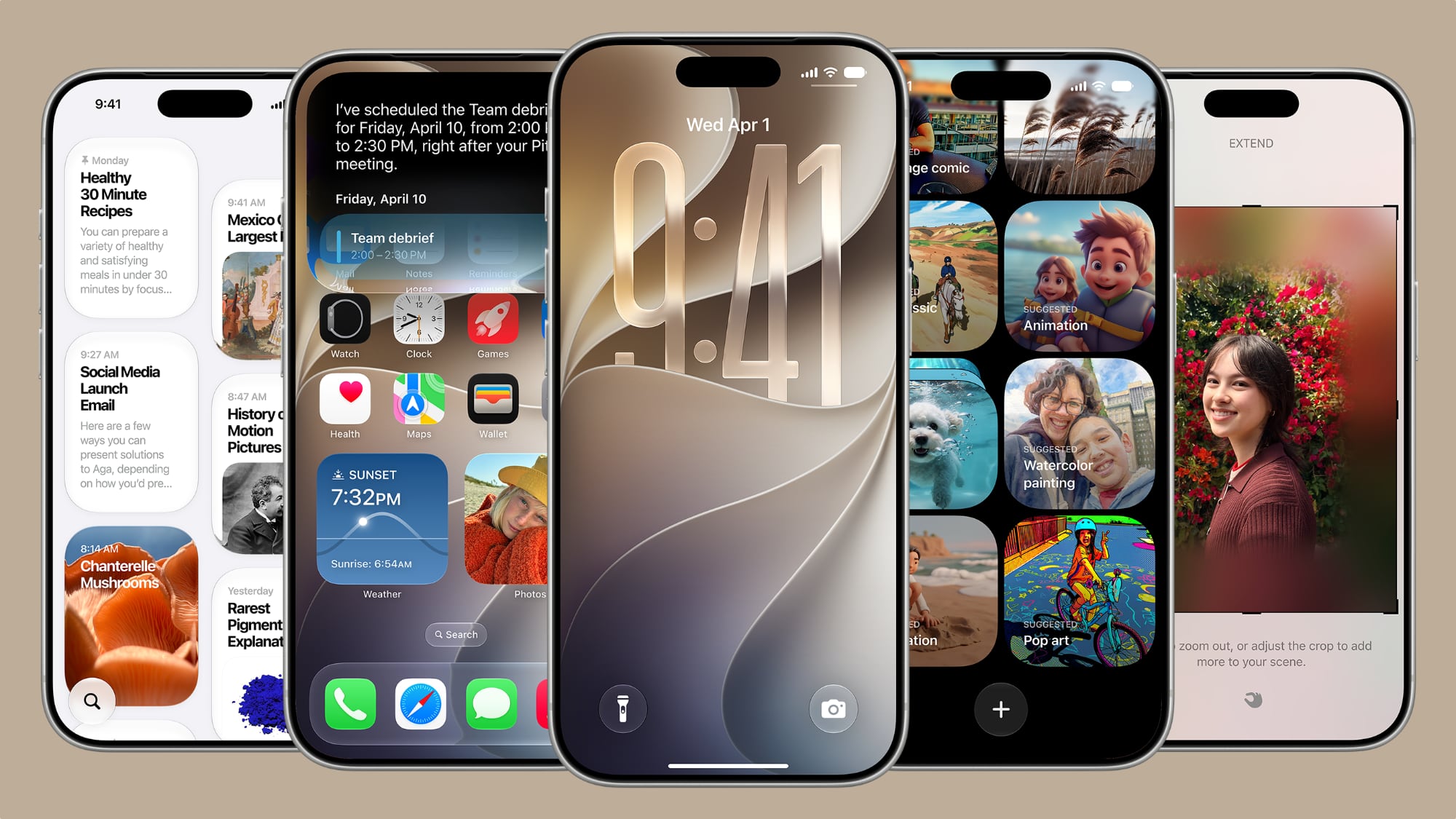
iOS 27 Lock Screen: Five Features Worth Knowing About
Apple took the wraps off iOS 27 at WWDC this week, and while most of the buzz has rightfully surrounded the sweeping Siri overhaul and the refreshed design language introduced in iOS 26, the Lock Screen has quietly received some of the most practical and polished upgrades in recent memory. These are not flashy announcements — they are the kinds of refinements that you notice every single time you pick up your iPhone, which arguably makes them more impactful than headline features you use once a month.
Some of what Apple has added is entirely new, while other changes build on the foundation laid by iOS 26. Together, they hand you a greater degree of control over the first thing you see every time your screen lights up. Whether you are planning to install the public beta next month or waiting for the full release this fall, here are the five Lock Screen features in iOS 27 that deserve your attention.
1. Extend Your Wallpaper with Apple Intelligence
One of the most immediately useful additions in iOS 27 is the wallpaper extension feature, which uses Apple Intelligence to automatically expand a photo beyond its original boundaries so it fills the Lock Screen more naturally. If you have ever tried to set a favorite photo as your wallpaper only to find it crops awkwardly, leaves empty bars at the edges, or simply does not match your iPhone's aspect ratio, this feature solves the problem elegantly.
When you choose a photo that does not quite fit, iOS 27 presents an "Extend" option. Tap it, and Apple's on-device intelligence analyzes the existing image content — its colors, textures, lighting, and composition — and generates matching background details to fill in the gaps around the edges. The results blend seamlessly with the original photo, meaning there is no jarring seam where the real image ends and the generated content begins. Apple has also made the Extend option available inside the Photos app itself, so you can apply it to images before you even set them as wallpaper.
2. A Compact Clock Mode for a Cleaner Look
The large, centered clock has been a defining element of the iPhone Lock Screen for years. iOS 16 gave users font and color options, but the clock always dominated the center of the screen. iOS 27 finally gives minimalists what they have been asking for: a compact clock mode.
Found in the top-right corner of the Font & Color panel within Lock Screen customization, the compact layout moves the time from its traditional prominent position to a smaller, more discreet display. This opens up considerably more visual real estate on the Lock Screen, which is particularly welcome if you use a full-bleed photo wallpaper or a piece of artwork you do not want obscured by oversized numerals. It is a subtle change, but one that makes the Lock Screen feel noticeably less cluttered for those who prefer a pared-back aesthetic.
3. Smarter Widget Refresh and Layout Control
Lock Screen widgets have been a staple since iOS 16, but in iOS 27 Apple has improved how they update and how you arrange them. Widgets on the Lock Screen now refresh more intelligently based on your usage patterns, prioritizing information you actually glance at rather than cycling through updates indiscriminately. The result is that your Lock Screen feels more relevant and timely without the battery overhead of constant background refreshing.
Apple has also loosened some of the layout constraints, giving you more flexibility in how widgets are positioned relative to the clock and notification area. If you rely on widgets for weather, activity rings, or calendar events, you will find the new arrangement options make it easier to put the right information exactly where your eye naturally lands.
4. Notification Grouping and Stack Behavior Improvements
iOS 26 introduced a redesigned notification experience on the Lock Screen, and iOS 27 refines it further. Notifications now group more intelligently by context, not just by app, which means a flurry of messages from a group conversation will cluster together separately from direct messages from the same app. The stacked card view has also been updated so that swiping through grouped notifications feels more fluid and intentional, with less risk of accidentally dismissing something you wanted to keep.
For users who receive high volumes of notifications throughout the day, these behavioral tweaks add up to a meaningfully less chaotic Lock Screen experience. Apple has also added a new option to temporarily pause notification previews during focus periods without fully enabling a Focus mode, giving you a lighter-touch way to reduce distraction.
5. Live Activity Redesign and Expanded Support
Live Activities — the dynamic banners that display real-time information like sports scores, delivery tracking, and ride statuses — have received a visual and functional overhaul in iOS 27. The updated design brings Live Activities more in line with the overall aesthetic refresh introduced in iOS 26, with rounder corners, more breathing room, and support for richer graphical content from developers.
More meaningfully, Apple has expanded the Live Activities API to allow third-party developers to display more data points simultaneously, which means apps can surface more useful at-a-glance information without requiring you to unlock your phone. For anyone who tracks workouts, monitors deliveries, or follows live events, this is a genuine quality-of-life improvement that makes the Lock Screen more functional than ever before.
How to Try These Features
Apple is expected to release the iOS 27 public beta next month, with the final version arriving for all users in the fall alongside new iPhone hardware. To access Lock Screen customization, long-press on your Lock Screen, tap Customize, and select Lock Screen. The new Extend wallpaper option appears when you select a photo that does not fill the screen, while the compact clock toggle is found in the Font & Color panel. Widget and notification settings are accessible through Settings under Notifications and Face ID & Passcode respectively.
Taken individually, none of these five features will dramatically transform how you use your iPhone. Taken together, however, they represent Apple's most thoughtful Lock Screen update in several years — one focused not on adding complexity, but on giving you cleaner, smarter, more personalized control over the face of your device.